Workspaces
What a workspace is, who can see it, and how members, drafts, publishing and plugins work.
Everything in Kasynga is built from four levels. Learning them makes the rest of the product read plainly.
The four levels
| Level | What it is |
|---|---|
| Workspace | The whole effort, such as a department or a programme. The unit of membership and sharing. |
| Artifact | The piece you build, name, open and share inside a workspace. |
| Table | Rows of one type. |
| View | A saved way of looking at one table. |
A workspace holds artifacts. An artifact holds tables. A table is shown through one or more views.
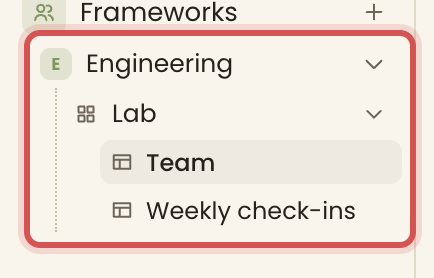
Why the artifact level exists
A team's work is not one flat pile of tables. It is a handful of distinct efforts, each with its own tables, its own name and its own place in the sidebar. The artifact is the unit of identity.
An artifact usually holds several tables that link to one another, and it keeps them together. Every artifact has a type, a table or a workflow. An artifact's settings show its type, how many tables it holds and, when it came from a template, the template's name and version.
To make one, see Create an artifact.
Choosing and arranging artifacts
On a workspace's page, a click chooses an artifact. Shift with a click chooses every artifact between it and the last one chosen. Cmd or Ctrl with a click adds one or takes it away. A double click, or Enter, opens it. Escape, or a click on the empty page, lets go.
On a touch screen, a tap opens an artifact, and a long press chooses it and shows its menu.
With several chosen, the right-click menu acts on all of them. Star stars them all, and Move to trash asks once and says how many go. They all go together, or none of them do.
Your starred artifacts choose the same way. With several chosen, Unstar takes the star off them all.
Workspace cards choose the same way, on Home, on My Workspaces, on the Starred page and in the Trash. A double click, or Enter, opens a workspace. With several chosen, the right-click menu stars or unstars them all, and Move to trash asks once and says how many go.
In the Trash, choose several workspaces or artifacts and pick Restore to bring them all back with one question. Destroying stays one at a time.
Drag an artifact to give it a new place. Drag one of several chosen and they all move together. In the sidebar, a click opens an artifact as before, and a drag moves it within its workspace. Everyone in the workspace sees the same order, and the sidebar and the page show a teammate's move, rename, new artifact or trash as it happens. A private artifact keeps its own place.
Creating a workspace
New workspace, on the home page or on the My Workspaces page, asks for a name and a sentence on what happens in it. The workspace is created at once, and you are its owner.
Names
A workspace, an artifact, a template and an organisation all follow the same name rule.
- A name is at most 30 characters.
- It uses letters, numbers and spaces only. Letters from any language count.
A name that breaks the rule is refused under its field, with the reason.
Drafts and publishing
A new workspace starts as a draft. Only its owners can see a draft. It wears the draft grey in the sidebar and on its card, whatever colour it was given, and its card says Draft.
When it is ready, an owner publishes it, from the Publish button beside the Draft mark, from the workspace's settings, or from its card's right-click menu. Publishing asks first, because everyone in the workspace can then see it and open it. Unpublish asks too, and takes it back to a draft only its owners can see.
Members and invitations
Membership lives on the workspace. A member can open every shared artifact in it. There are two roles.
| Role | What it adds |
|---|---|
| Owner | Publishes and unpublishes the workspace, edits its name, description and colour, moves it to the trash and destroys it for good from the trash. An owner of the organisation renames it and claims its free month of Startup. |
| Member | Opens and edits everything shared in the workspace. |
Roles are checked on every change as it is made.
Invitations are sent from the setup steps of a new organisation or workspace. Each invitation goes to an email address. By default, invitations into a draft wait until the workspace is published. Untick Send invitations when I publish to send them at once.
An invited person finds the invitation at the top of their home page, with Join and Decline. Nobody joins a workspace without choosing to.
Organisation settings, at the foot of the sidebar, shows the organisation's name, your role, how many workspaces it holds, and its plan.
Private artifacts
When you create an artifact, you choose who can see it. Everyone in the workspace lets its members open it. Only me keeps it private to you. Private artifacts are part of the Startup plan. On Hobby the choice stands locked and the artifact is shared.
Starring
A star marks a workspace or an artifact you return to often. Star one from its page, or from its card. Starred items stand in their own section of the sidebar, and the Starred page lists them, workspaces first, then artifacts. Stars are personal. Nobody else sees yours.
Templates
A template is a ready workspace you start an artifact from. Each one has a numbered version, and an artifact made from it records the name and version it came from. The artifact is yours and independent. Later versions of the template never change it. See Templates.
Plugins
The Marketplace, at the foot of the sidebar, lists plugins and integrations. Each plugin says how it installs.
- Per workspace. Its card lists your workspaces, each with Add, or Installed and Remove.
- For the organisation. One Add to organisation turns it on across every workspace.
A plugin with settings offers them once it is added. Removing a plugin asks first. It stops working, and anything it saved is deleted. You can add it again later.
Two ways to build a workspace
When you first sign up, you can describe what you need in a sentence, and Kasynga drafts a whole workspace with its tables, the links between them and sensible fields. That happens only when starting out. Inside the app, you build by hand, a table at a time, or start an artifact from a template. Either way you edit the result like anything else.