Views
Filtering, sorting and grouping one table. The operators each type offers.
A view is a saved way to look at one table. It sets which columns show, in what order, and how they are filtered, sorted and grouped. A table can have many views and always keeps at least one.
When a view is read, it runs in one order: filter, then sort, then group. Grouping and sorting happen over the rows the filter kept.
Filtering
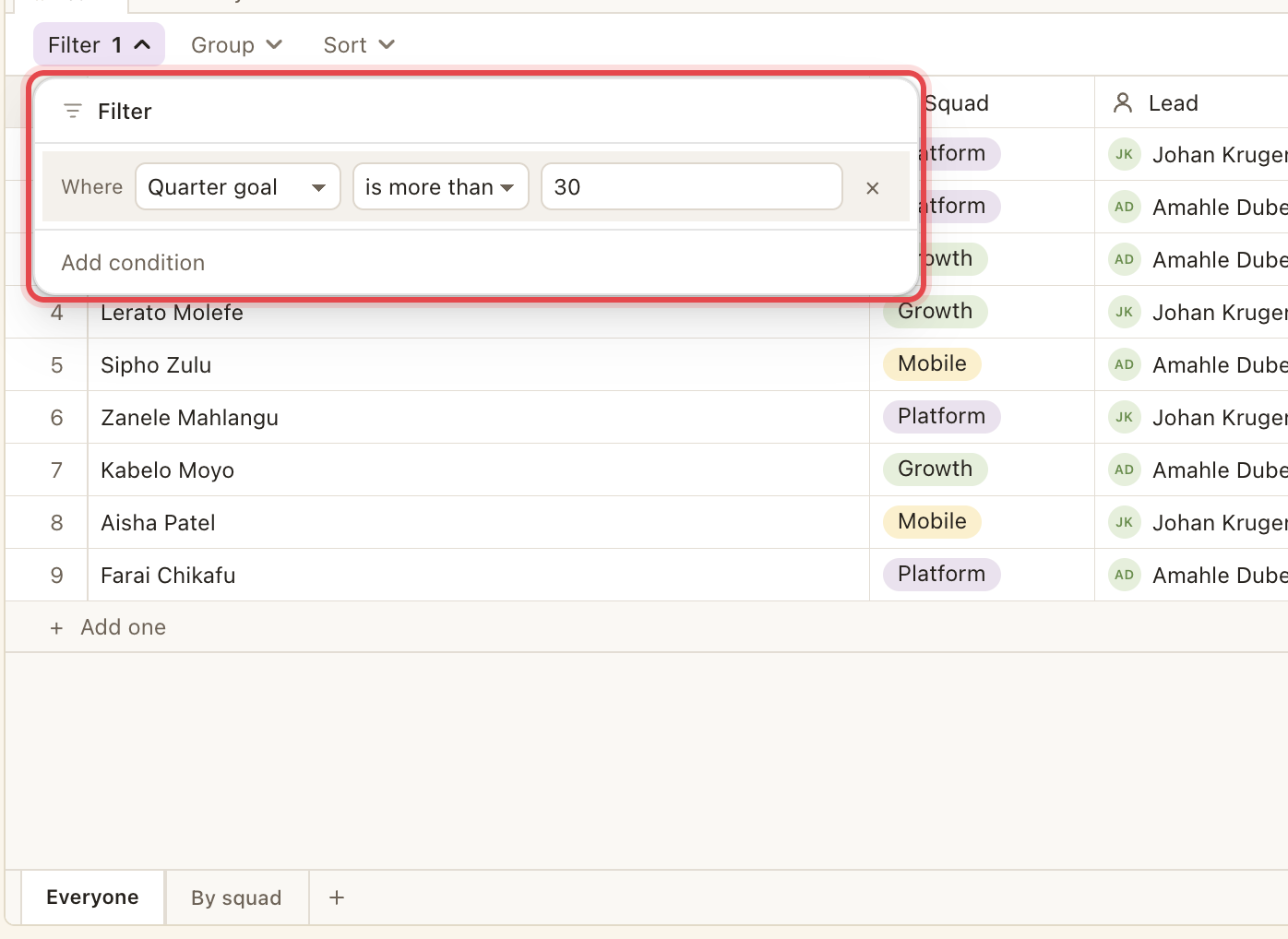
A filter is a set of rules joined by and or or. Each rule is a column, an operator and a value. Some operators, like is empty, need no value. The operators a rule can pick come from the column's type. There is no expression language.
Operators by field type
| Type | Operators |
|---|---|
| Text | contains, does not contain, is, is empty, is not empty |
| A choice | is, is not, is any of, is empty, is not empty |
| More than one choice | has, does not have, has any of, has all of, is empty |
| A number | is, is not, is more than, is less than, is between, is empty |
| A rating | is, is not, is more than, is less than, is empty |
| Yes or no | is |
| A date | is, is before, is after, is between, is empty, is not empty |
| A person | is, is not, is any of, is empty |
| A link to another table | is, is not, is any of, is empty |
| Steps you name | is, is at or above, is below, is empty |
| A file, A rollup, A formula | is empty, is not empty |
contains is a case-insensitive substring. is between takes two ends (numbers, or ISO dates). A yes/no is never empty. A missing answer reads as No.
Rules that are not finished do nothing
A rule with no value yet (an empty contains, a half-filled is between) filters nothing. An unfinished condition is not a claim about the rows, so it never hides any.
Joining rules
joinand | ordefault andSorting
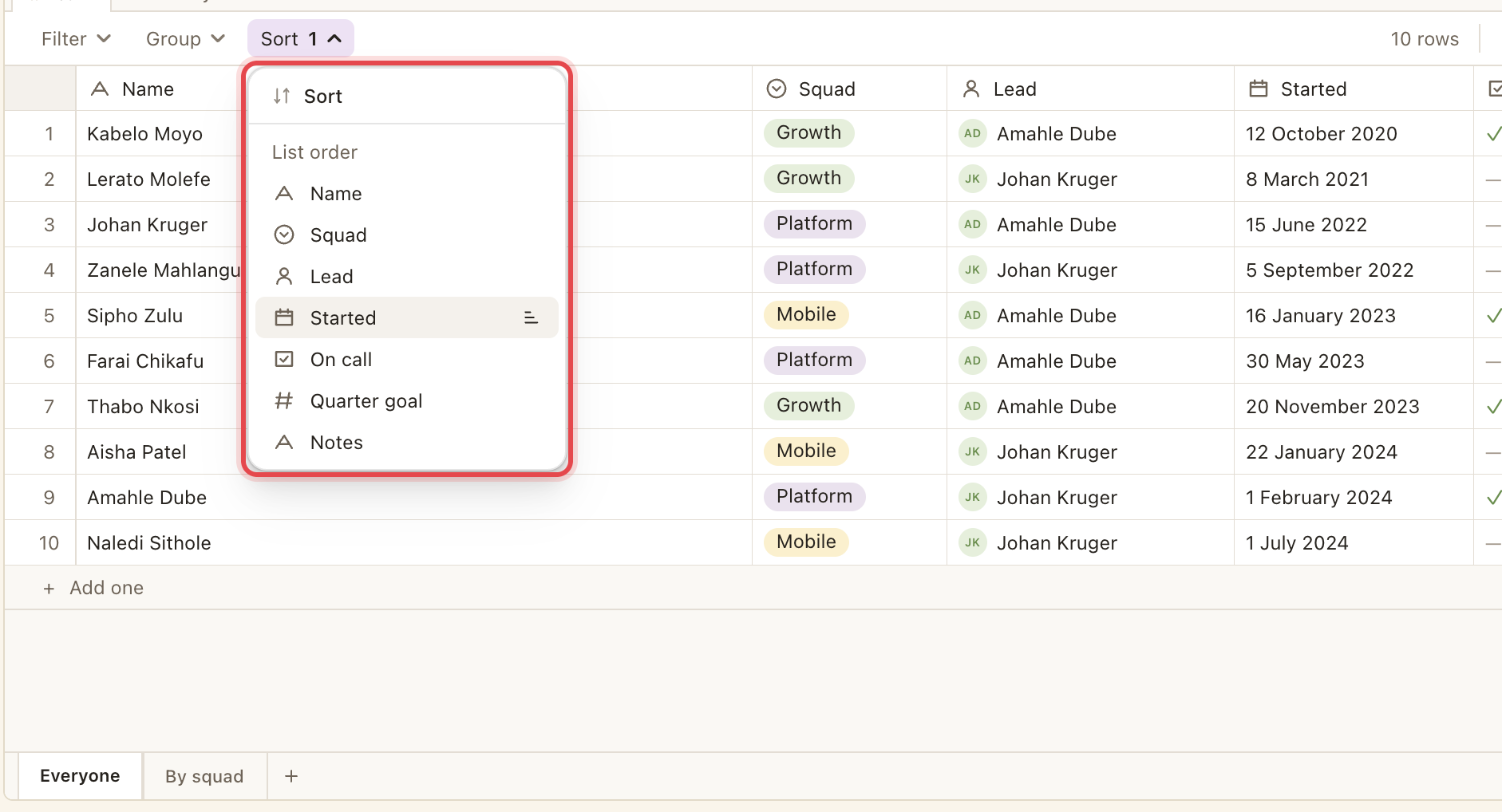
Sort is a list of rules, each a column and a direction (asc by default). The first rule decides. Later rules only break its ties. When nothing decides, rows keep their manual order, so a sort is stable.
What "ascending" means, by type
| Type | Ascending order |
|---|---|
| Text | Dictionary order |
| A choice | The option's own menu order |
| A number, A rating | Smallest to largest |
| Yes or no | Yes before No |
| A date | Oldest to newest |
| A person | By person name |
| A link to another table | By the linked row's title |
| Steps you name | By rung (level order), lowest first |
Blanks sort to one end. An empty number or step sorts first ascending. An empty choice sorts last. Empty text and dates sort first.
Grouping
Grouping buckets the rows by one column. Only groupable types are offered. They are A choice, More than one choice, A number, A rating, Yes or no, A date, A person, A link to another table and Steps you name.
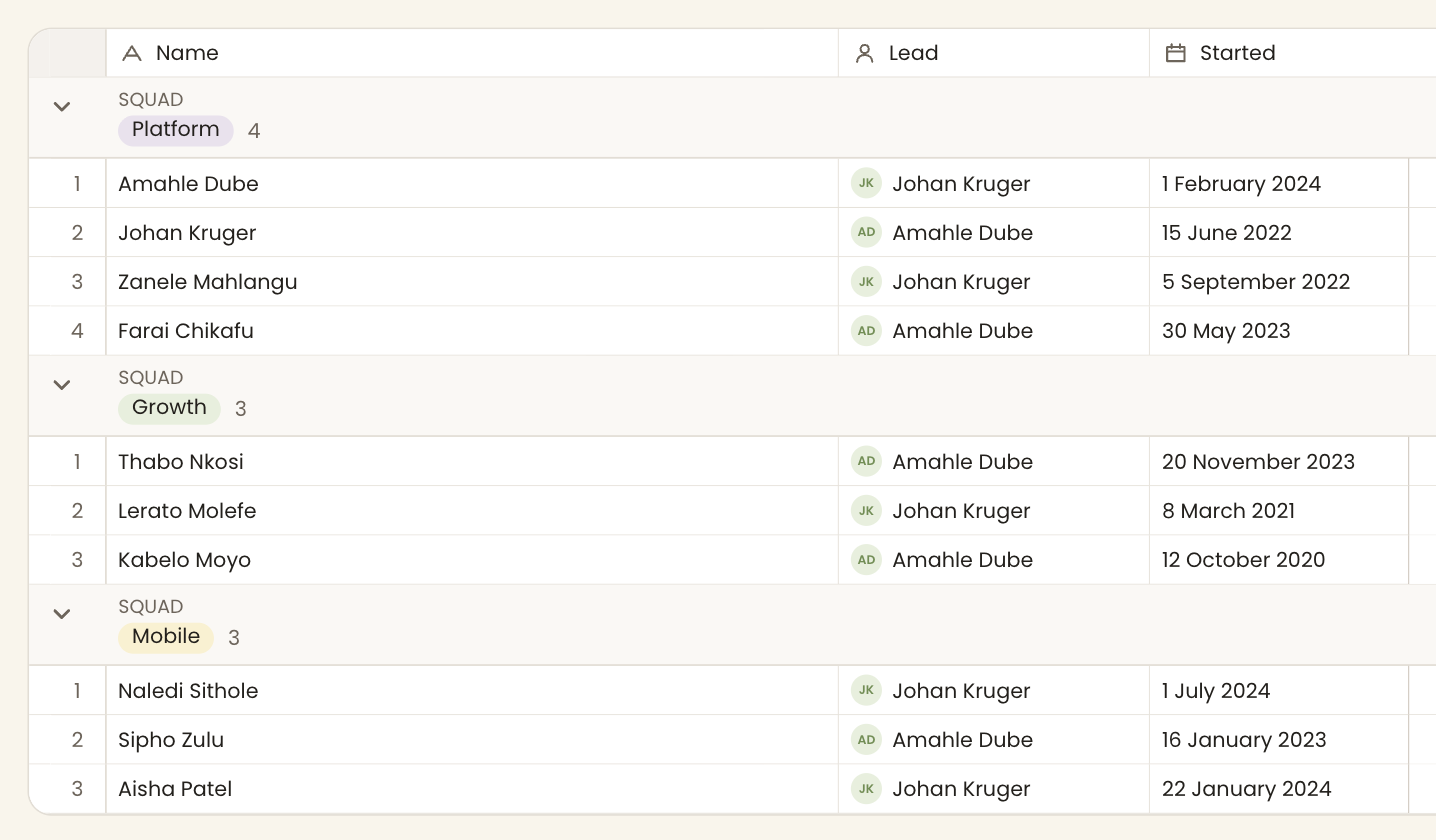
Groups are ordered by the value's natural order. That is option menu order for a choice, Yes then No, level order for steps, numeric for a number, and chronological for a date. The blank group ("Nothing yet") always comes last.
fieldcolumnrequiredunitday | week | monthrangesrange setthroughlink hopAn A choice or More than one choice grouping keeps a group for every option, even empty ones, so a board always has a column to drop a card into. A row with more than one answer appears in every group it belongs to.
Dropping into a group
Dragging a row into a group writes that group's value. This works only for groups that name a written value. Those are A choice, More than one choice, Yes or no, A person, A link to another table and Steps you name.
Shown as
A view is shown as a table or a board. The Shown as control at the right of the toolbar switches between them. Both draw the same rows, with the same filter and sort.
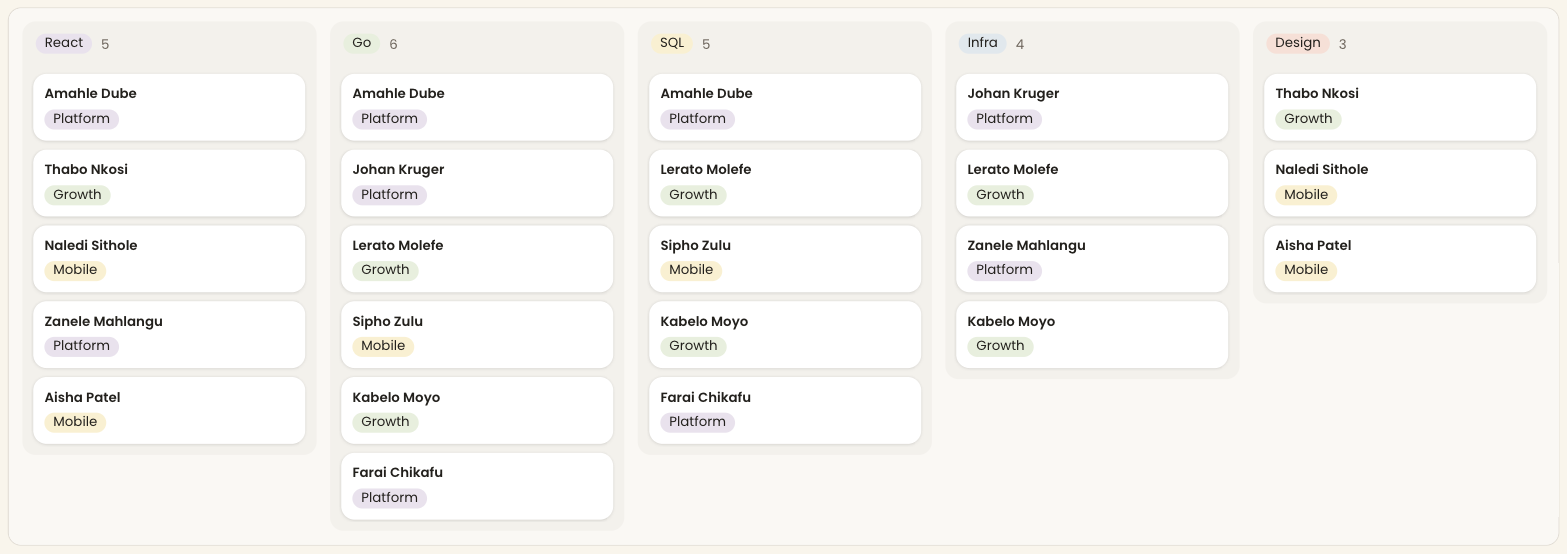
A board draws a column for each group of the view's grouping, and each row as a card in its column. A card shows the row's name and the first three shown columns that hold a value. Each column carries its count and an Add one button.
A board with no grouping has no columns yet. It offers the columns that can make them: A choice, More than one choice, Yes or no, A person, A link to another table and Steps you name.
Adding a card
Add one places a new card at the foot of its column. Type the card's name in it. Under the name, each field the card shows has an Add line that opens the same editor the table uses. The field the board is grouped by has no line. The card takes the answer of its column.
On a board with no cards yet, Add one opens a new card in the first column.
Press Enter to keep the card. Clicking anywhere else keeps it too, once it has a name. The card is saved in one step, with its name, the answers given and the column's answer. Press Escape to let it go. A card with no name is not saved.
Tab moves between the name and the Add lines.
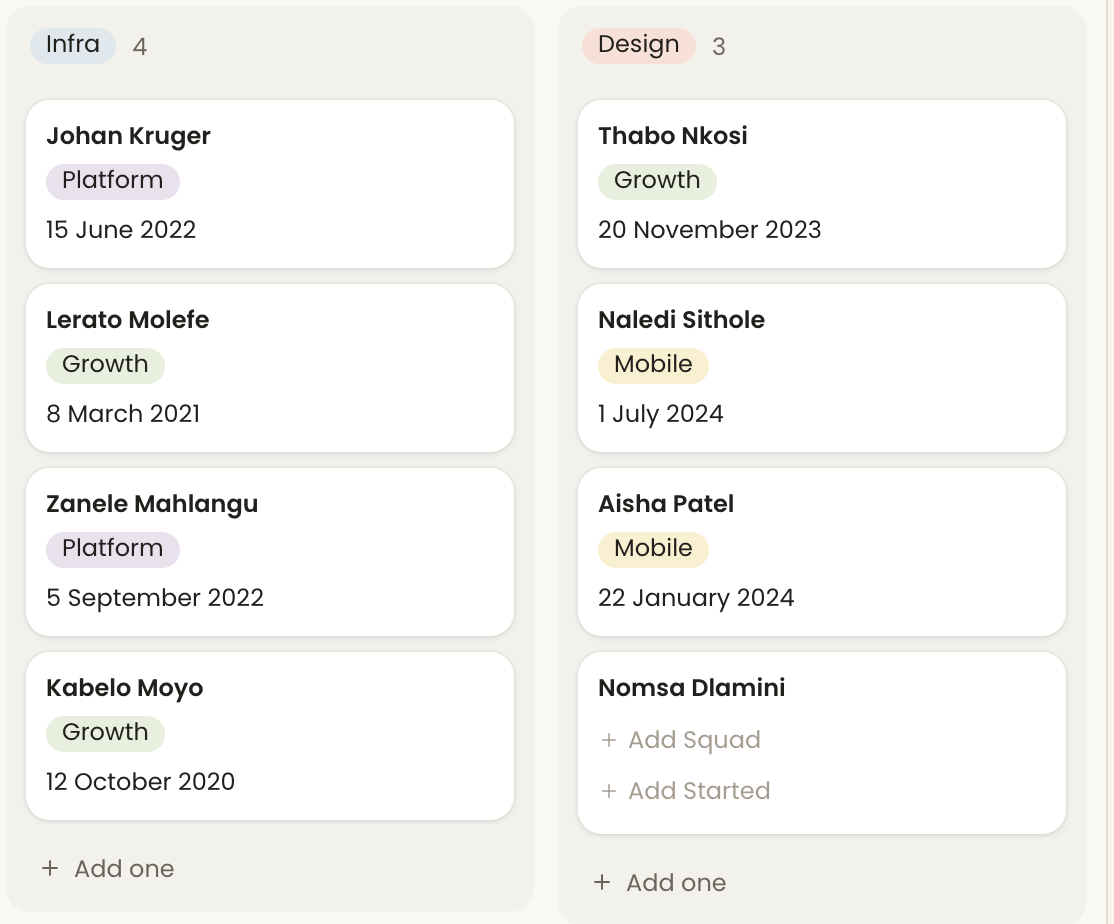
Opening a card
Click a card to open it. Enter opens the card that has the focus. The card's name stands at the top. Click it to rename it.
Under the name stands every column of the table, not only the three the card shows. Click a value to change it. Each change is saved as it is made, the same as in the table. A formula or rollup shows its value and cannot be changed here.
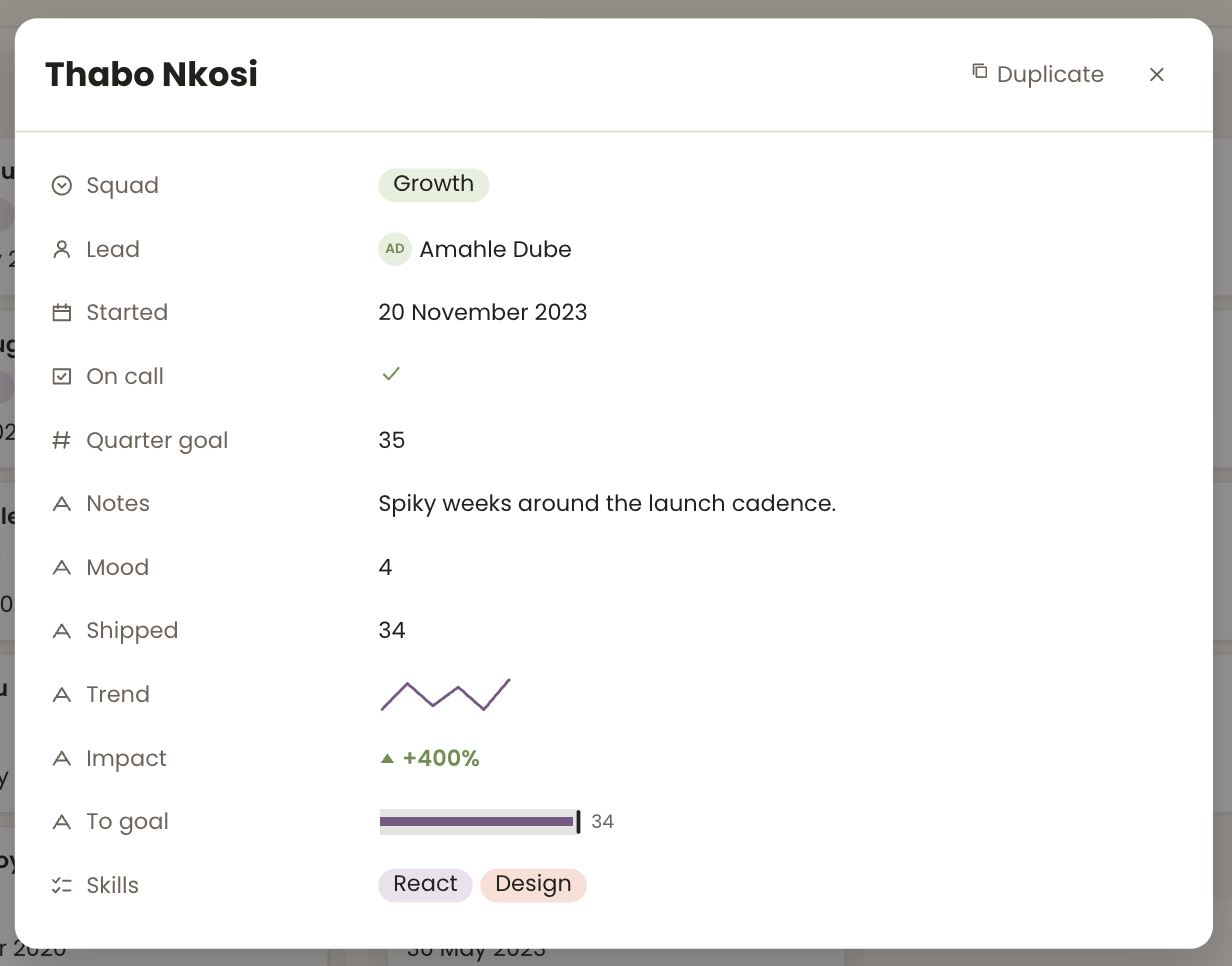
Duplicate makes a copy of the card. Delete asks first. Escape or the close button closes the card, and the focus goes back to it.
Moving columns
Drag a column by its head to move it. The keyboard does the same. Tab reaches a column's head, and Alt with Left or Right moves the column.
The order belongs to the view. Another view of the same table keeps its own order. A new answer gets its column at the end. A column hidden by a filter comes back at the end too.
Moving cards
Drag a card to another column to change its answer to that column. Drop it on a card to place it before that card. Drop it inside its own column to change its place only.
A move is saved in one step. If it cannot be saved, the card goes back where it was.
Right-click a card for the same actions as a row in the table.
The keyboard does the same. Tab reaches a card. The arrow keys move between cards and columns. Alt with Left or Right moves the card to the next column, and Alt with Up or Down moves it within its column.
Cards with more than one answer
On a board grouped by More than one choice, a row stands in every column it holds. A person with the skills React and Go has a card in both.
Moving one of those cards swaps that answer. Moving the React card to SQL takes React away and adds SQL, and Go stays. A card moved into a column it already holds keeps its place there and only leaves the column it came from. A card cannot move into Nothing yet, because a row with no answer has nothing to swap.
What a view stores
nametextdisplaytable | boarddefault tablefilter{ join, rules }sortrule[]group_by{ field, unit?, ranges?, through? }config.fieldscolumn idsDeleting a column cleans every view. It drops from any grouping, sort and filter that named it.
A change to a view names only what it changes. Resizing one column, folding one group or showing one column changes that one entry, so two people changing the same view at once both keep their change.